


Google Enhanced Conversions: What It Is and How to Set It Up
Look — if you are running Google Ads and your Smart Bidding is underperforming, my first question is always about your conversion data quality. Not your creative. Not your landing page. The data. Google’s algorithm is only as good as what you feed it, and most advertisers are feeding it garbage because their standard conversion tags miss 10 to 20% of actual purchases. Enhanced Conversions is Google’s fix for this, and I want to break down exactly how it works and when it matters. Google Enhanced Conversions is a first-party data feature in Google Ads that supplements standard conversion tags by sending hashed customer data — email address, phone number, name, or mailing address — from the conversion page to Google’s servers. Google matches this hashed data against signed-in Google accounts to recover conversions that would otherwise be lost to cookie restrictions, cross-device journeys, and browser privacy changes. There are two variants: Enhanced Conversions for Web (ecommerce and on-site lead gen) and Enhanced Conversions for Leads (offline and CRM-based conversions for B2B). The feature does not replace your existing conversion tag; it layers on top of it, filling gaps that browser-side tracking alone cannot cover.
TL;DR
Google Enhanced Conversions sends hashed first-party customer data (email, phone, address) alongside your standard conversion tag to help Google match conversions to ad clicks — even when cookies are blocked, deleted, or expired. There are two versions: Enhanced Conversions for Web handles on-site conversions (purchases, form fills), while Enhanced Conversions for Leads connects offline sales from your CRM back to the original ad click. Google reports that advertisers typically see improvements in measured conversions after implementation (see Enhanced Conversions overview). The feature works through three setup paths: the Google tag (gtag.js), Google Tag Manager (GTM), or the Google Ads API for server-side implementations. Enhanced Conversions is not a replacement for Consent Mode v2 — they solve different problems and should run together. This guide covers both variants, walks through setup step by step, explains the most common mistakes, and shows where independent tracking picks up where Enhanced Conversions stops.
What is Google Enhanced Conversions?
Standard Google Ads conversion tracking works by dropping a cookie when someone clicks your ad, then reading that cookie when they convert on your site. That system breaks in at least four common scenarios: the user switches devices between click and purchase, their browser blocks or deletes third-party cookies, they use Safari (which caps JavaScript-set first-party cookies to 7 days under ITP), or they have an ad blocker that prevents the conversion tag from firing.
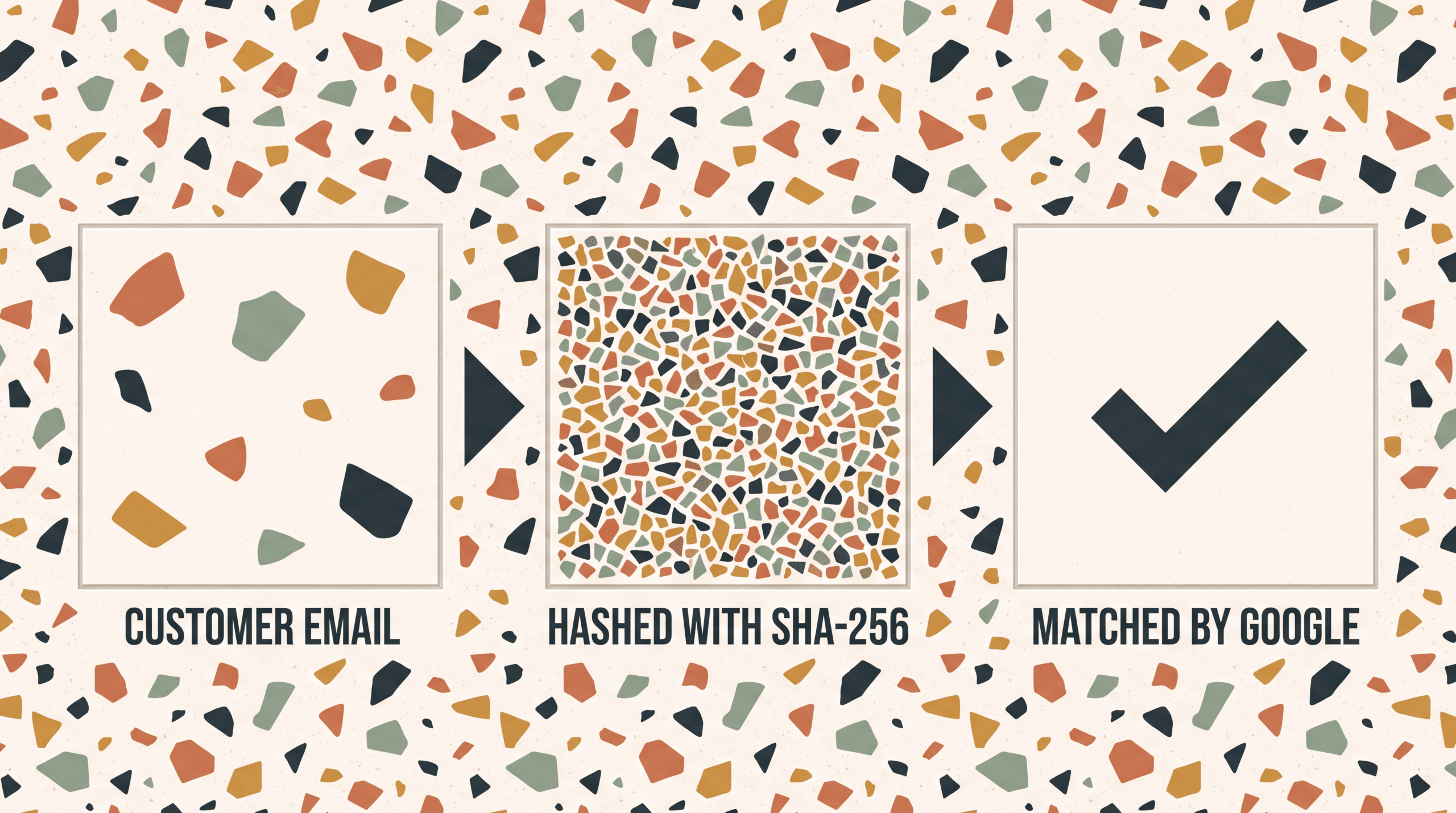
Enhanced Conversions addresses the matching problem differently. Instead of relying solely on cookies, it captures user-provided data from your conversion page — the email address a customer enters at checkout, for instance — hashes it using SHA-256, and sends that hash to Google. Google then matches the hash against its database of signed-in users. If the customer was logged into Gmail or YouTube when they originally clicked your ad, Google can connect the dots without needing the original cookie.
The hashing is important. Google never sees the raw email address or phone number. Your site hashes the data before transmission (or Google’s tag does it automatically if you pass unhashed values). This is a privacy-preserving mechanism, not a data collection expansion. Google is matching against data it already has from its own logged-in user base.
For advertisers spending $10,000 or more per month on Google Ads, those recovered conversions are not a rounding error. They are training data. Google’s Smart Bidding algorithms — Target CPA, Target ROAS, Maximize Conversions — learn from every recorded conversion. Miss 15% of your conversions due to tracking gaps, and the algorithm is making bid decisions based on an incomplete picture. It underbids on keywords and audiences that actually convert, because it never sees those conversions happen. For a deeper look at how bidding strategies depend on this data, see our guide on Google Ads bidding and attribution. If you are evaluating whether Google Analytics 4 alone covers your measurement needs, our Hyros vs GA4 comparison breaks down the structural differences.
Enhanced Conversions for Web vs Enhanced Conversions for Leads
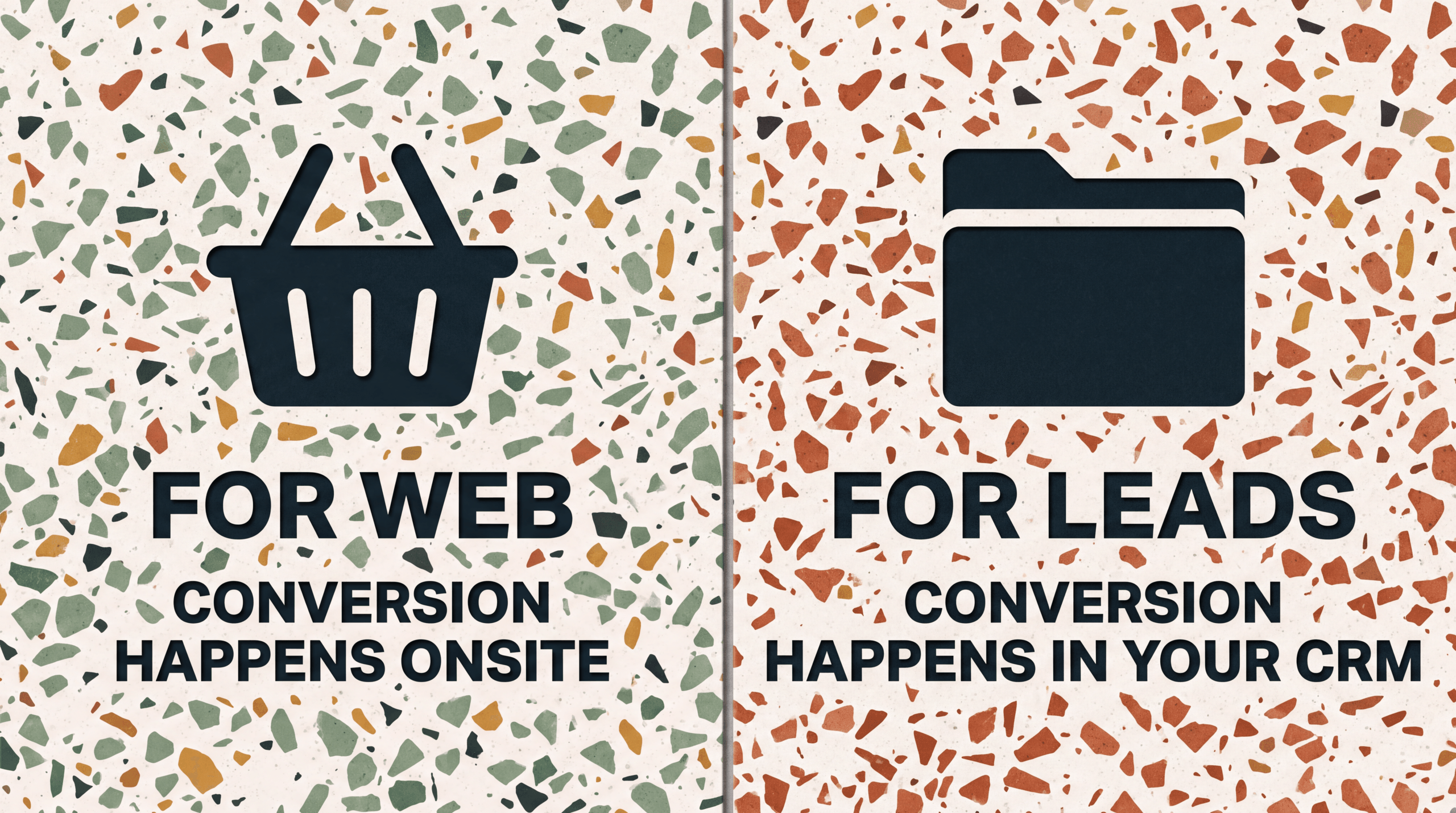
The two variants solve different problems for different business models. Confusing them is one of the most common setup mistakes.
| Enhanced Conversions for Web | Enhanced Conversions for Leads | |
|---|---|---|
| What it tracks | On-site conversions (purchases, form fills, signups) | Offline conversions (closed deals, phone sales, CRM events) |
| Data source | Customer data entered on conversion page | CRM or sales system data uploaded to Google |
| Matching method | Hashed email/phone from checkout matched to Google user | GCLID or hashed email from lead form matched to later sale |
| Setup path | Google tag, GTM, or Google Ads API | Google tag captures email at form submit; CRM uploads sale later |
| Best for | Ecommerce (Shopify, WooCommerce), on-site lead gen | B2B with sales teams, coaching programs, high-ticket services |
| Time to conversion | Typically same-session or within days | Days to months (the sale happens offline) |
Enhanced Conversions for Web is the straightforward variant. A customer clicks your ad, lands on your site, and buys. At checkout, your conversion tag fires and simultaneously sends hashed customer data to Google. Google uses that data to verify the conversion came from the ad click, even if the cookie that originally recorded the click has since expired or been blocked.
Enhanced Conversions for Leads solves a harder problem. A prospect clicks your ad, fills out a lead form on your site, and then your sales team closes the deal weeks or months later by phone or email. The conversion happens in your CRM, not on your website. Enhanced Conversions for Leads works by capturing the prospect’s hashed email (and the GCLID click identifier) at the moment they submit the lead form, then matching that against the conversion event you later upload from your CRM. Google recently stated that Enhanced Conversions for Leads is the upgraded replacement for legacy offline conversion imports, with benefits like cross-device attribution and engaged-view conversions that the old GCLID-only upload could not provide.
One constraint worth noting: offline conversion uploads must happen within 63 days of the original click. If your sales cycle runs longer than that — common in enterprise B2B — Google will not import the conversion. This is a hard limit, not a configurable window.
Why does Enhanced Conversions matter in 2026?
Three forces have converged to make Enhanced Conversions shift from “nice to have” to structurally necessary.
Cookie erosion is accelerating. Safari’s Intelligent Tracking Prevention already caps first-party cookies set via JavaScript to 7 days. Firefox has similar restrictions. Chrome has not fully deprecated third-party cookies yet, but it has rolled out Tracking Protection to a growing percentage of users and continues tightening its Privacy Sandbox timeline. The net effect: browser-only conversion tracking loses more signal every quarter. Enhanced Conversions bypasses the cookie entirely by matching on deterministic user data. Meta addressed the same signal-loss problem with its Conversions API (CAPI) — see our Facebook CAPI setup guide for the Meta-side equivalent.
Data-Driven Attribution needs volume. Google Ads made data-driven attribution (DDA) its default model for new conversion actions in late 2021 and removed four legacy models — first-click, linear, time-decay, and position-based — in 2023 because fewer than 3% of advertisers were using them. DDA distributes conversion credit across multiple touchpoints using machine learning. But machine learning needs data. Every conversion you miss due to tracking gaps is a missing training example. Enhanced Conversions feeds the DDA model with conversions that standard tags would drop. For context on how DDA changed attribution, see our guide on what is ad attribution.
Smart Bidding compounds data quality. This is the part most advertisers underestimate. A 10% improvement in measured conversions does not just mean 10% better reporting. It means 10% more signal for the bidding algorithm to learn from. Over weeks and months, that compounds into meaningfully different bid decisions. Let’s imagine you have a keyword driving purchases from Safari users who clear cookies between sessions. Without Enhanced Conversions, Google never sees those purchases. The algorithm thinks that keyword is low-value and bids down. You scale the wrong keywords and starve the right ones. That is a revenue problem, not a reporting problem. One practitioner documented a 10% increase in measured Search conversions immediately after implementing Enhanced Conversions, with CPA improvements following in subsequent weeks as the algorithm recalibrated.
How to set up Enhanced Conversions for Web
This walkthrough covers the most common path. The setup has five steps regardless of whether you use the Google tag or GTM.
Step 1: Enable Enhanced Conversions in your Google Ads account
Open Google Ads. Go to Goals, then Conversions, then Settings. Under “Enhanced conversions,” toggle the feature on. Select the conversion action you want to enhance — typically your primary purchase or lead conversion. This account-level toggle is a prerequisite; nothing else works until it is turned on.
A detail that trips people up: Enhanced Conversions is enabled per conversion action, not globally. If you have separate conversion actions for purchases and phone calls, you enable it on each one individually.
Step 2: Choose your implementation method
You have three paths.
Google tag (gtag.js): If your conversion tracking runs on the global site tag, you modify the conversion event snippet to include an enhanced_conversion_data object containing customer fields. Google’s tag handles the SHA-256 hashing automatically when you pass plaintext values, so you do not need to pre-hash.
Google Tag Manager: Create a “User-Provided Data” variable in the Variables section of your GTM container. Map each data field (email, phone, name, address components) to corresponding data layer variables or CSS selectors that pull the values from your conversion page. Then edit your Google Ads conversion tag, open the section for Enhanced Conversions, and point it to that User-Provided Data variable.
Google Ads API: For server-side implementations where conversion events are sent from your backend, bypassing the browser entirely. This path gives you the most control but requires development resources.
For most ecommerce stores on Shopify, WooCommerce, or similar platforms, GTM is the standard path. The Google tag method works well for custom-built sites where you control the page source directly.
Step 3: Configure the data fields
At minimum, Enhanced Conversions requires an email address. But match rates improve substantially when you provide additional fields.
- Email (required) — the single most important field for matching
- Phone number (recommended) — include country code
- First name and last name (recommended)
- Street address, city, region, postal code, country (optional but improves match rate)
Format matters. Phone numbers need country codes (e.g., +1 for US). Addresses should be broken into separate components — street, city, region, postal code, country — not sent as a single concatenated string. If you use GTM, each component maps to its own field in the User-Provided Data variable.
One critical timing requirement: your customer data must be available in the data layer or form fields before your conversion tag fires. If the tag fires on page load but the email address only populates after a form submission, Enhanced Conversions will send an empty hash and the match will fail. Check your tag firing sequence.
Step 4: Test the implementation
Before waiting for live data, validate immediately using two methods.
Google Tag Assistant: Install the Tag Assistant Chrome extension, load your conversion page, trigger a test conversion, and verify that hashed data appears in the enhanced conversion data section of the tag report. If you see populated hash values and no errors, the tag is sending data correctly.
Browser DevTools (Network tab): Open Chrome DevTools, go to the Network tab, trigger a conversion, and look for the request to googleadservices.com/pagead/conversion/. Find the em parameter — it should contain a hashed string (not plaintext). If the parameter is missing or empty, your data layer is not populating before tag fire.
For GTM specifically, use Preview mode. Click through the conversion flow and confirm that the User-Provided Data variable shows populated values at the moment the conversion tag fires. If the variable is empty at tag-fire time, your data layer push is happening too late.
Step 5: Validate in Google Ads Diagnostics
After implementation goes live, wait approximately 72 hours. Then open Goals, then Conversions in Google Ads. Click into the specific conversion action you enhanced and open the Diagnostics tab. Google provides a tag diagnostics report that shows whether Enhanced Conversions data is being received, the match rate, and any errors.
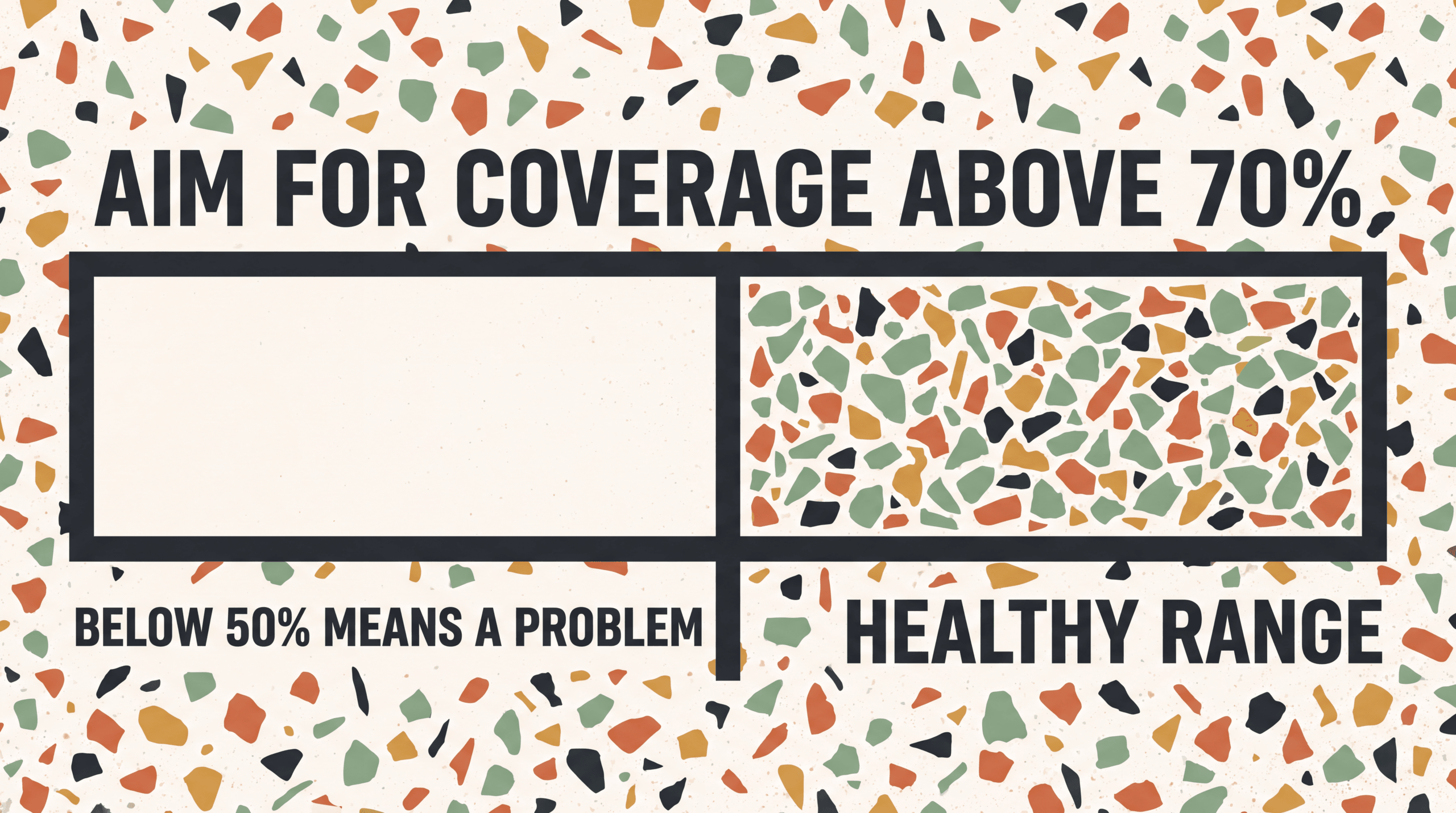
Your target: a coverage rate above 70%. Industry benchmarks suggest that anything below 50% indicates an implementation problem — likely missing data fields or a timing issue with your tag. Google’s updated Diagnostics tab now surfaces specific alerts for GTM setups, including “Low Match Rates” and “Missing User Data Parameters,” so you do not have to guess what went wrong.
Monitor coverage weekly for the first month, then monthly once stable. Watch for sudden drops, which usually mean a site update broke the data layer or a CMS update changed form field IDs.
How to set up Enhanced Conversions for Leads
The B2B path differs because the conversion happens offline, not on the website.
Step 1: Capture hashed email and GCLID at form submission
When a prospect fills out your lead form, two things need to happen. First, capture and hash their email address. Second, store the GCLID (Google Click ID) that is appended to the landing page URL when someone clicks a Google ad. Both values need to flow into your CRM alongside the lead record. If you are using the Google tag with Enhanced Conversions for Leads enabled, the tag collects GCLIDs automatically.
Step 2: Store click and lead data in your CRM
Your CRM record for each lead must include the hashed email, the GCLID (if available), and the timestamp of the form submission. When the sales team later closes the deal, the CRM record for that closed-won opportunity must be linkable back to the original lead entry.
HubSpot, Salesforce, and most modern CRMs can store custom fields for GCLID. If your CRM does not, you may need a hidden form field that captures the GCLID from the URL parameter and passes it through to the CRM. Note that Google’s legacy Salesforce integration was sunset on May 31, 2025 — you should use Data Manager for Salesforce imports going forward.
Step 3: Upload conversion events to Google Ads
When a lead converts to a sale, upload that conversion event to Google Ads. You can do this through the Google Ads UI (manual upload), through Data Manager (which supports scheduled imports), or through the Google Ads API for automated pipelines.
Each uploaded event needs a conversion timestamp and at least one matching key: the GCLID, the hashed email, or both. Google matches the uploaded sale back to the original ad click and attributes it to the campaign, keyword, and ad group that generated it.
The 63-day upload limit applies here. If more than 63 days pass between the original click and your upload, Google will not import the conversion.
Enhanced Conversions vs Consent Mode v2 — they solve different problems
These two features are frequently confused, and the confusion causes advertisers to implement one while neglecting the other. They are complementary, not alternatives.
Enhanced Conversions recovers conversions lost to cookie deletion, cross-device gaps, and browser privacy features. It works by matching hashed first-party data against Google’s logged-in user base. The user consented (their data was provided at conversion); the cookie simply failed to connect the dots.
Consent Mode v2 handles a different problem: users who denied consent entirely. When a user rejects tracking cookies via your consent banner, Consent Mode adjusts how Google tags behave — pings are still sent to Google, but without identifiers. Google then uses conversion modeling to statistically estimate how many unconsented users would have converted based on the behavior of consented users. Since July 2025, Consent Mode v2 is mandatory for advertisers serving users in the European Economic Area (EEA).
The practical takeaway: Enhanced Conversions fixes measurement gaps for users who consented. Consent Mode fixes measurement gaps for users who did not consent. Running only one leaves the other gap wide open.
A three-layer tracking setup looks like this: Consent Mode v2 for modeling unconsented conversions (estimated 5 to 15% recovery), Enhanced Conversions for recovering cookie-deleted consented conversions (measured improvement in conversions), and server-side tracking for bypassing browser restrictions entirely. Each layer is additive.
What are the most common Enhanced Conversions setup mistakes?
Five mistakes account for most failed implementations.
Not enabling at the account level first. Enhanced Conversions requires an account-level toggle in Google Ads Settings before any tag-level configuration will work. Advertisers configure everything in GTM, launch it, and then wonder why nothing shows up in Diagnostics. The account toggle is the prerequisite.
Sending unhashed PII through GTM incorrectly. If you configure GTM to pass raw email addresses but your data layer variable is pulling the wrong field, Google’s automatic hashing will hash garbage data. The result: low match rates with no obvious error message. Verify in GTM Preview mode that the actual email address (not a field label or placeholder text) appears in the User-Provided Data variable.
Tag firing before data is available. This is the timing problem mentioned in Step 3 above. If your conversion tag fires on page load but the customer data only enters the data layer after a form submission event, Enhanced Conversions sends empty data. The fix is either delaying the tag fire trigger or pushing data to the data layer before the tag fires.
Ignoring Consent Mode integration. In the EEA, if Enhanced Conversions fires before consent is granted, you are sending user data without permission. Enhanced Conversions should be gated behind the consent signal — only send hashed data when the user has opted in. Most Consent Management Platforms (CMPs) support this integration, but it has to be explicitly configured.
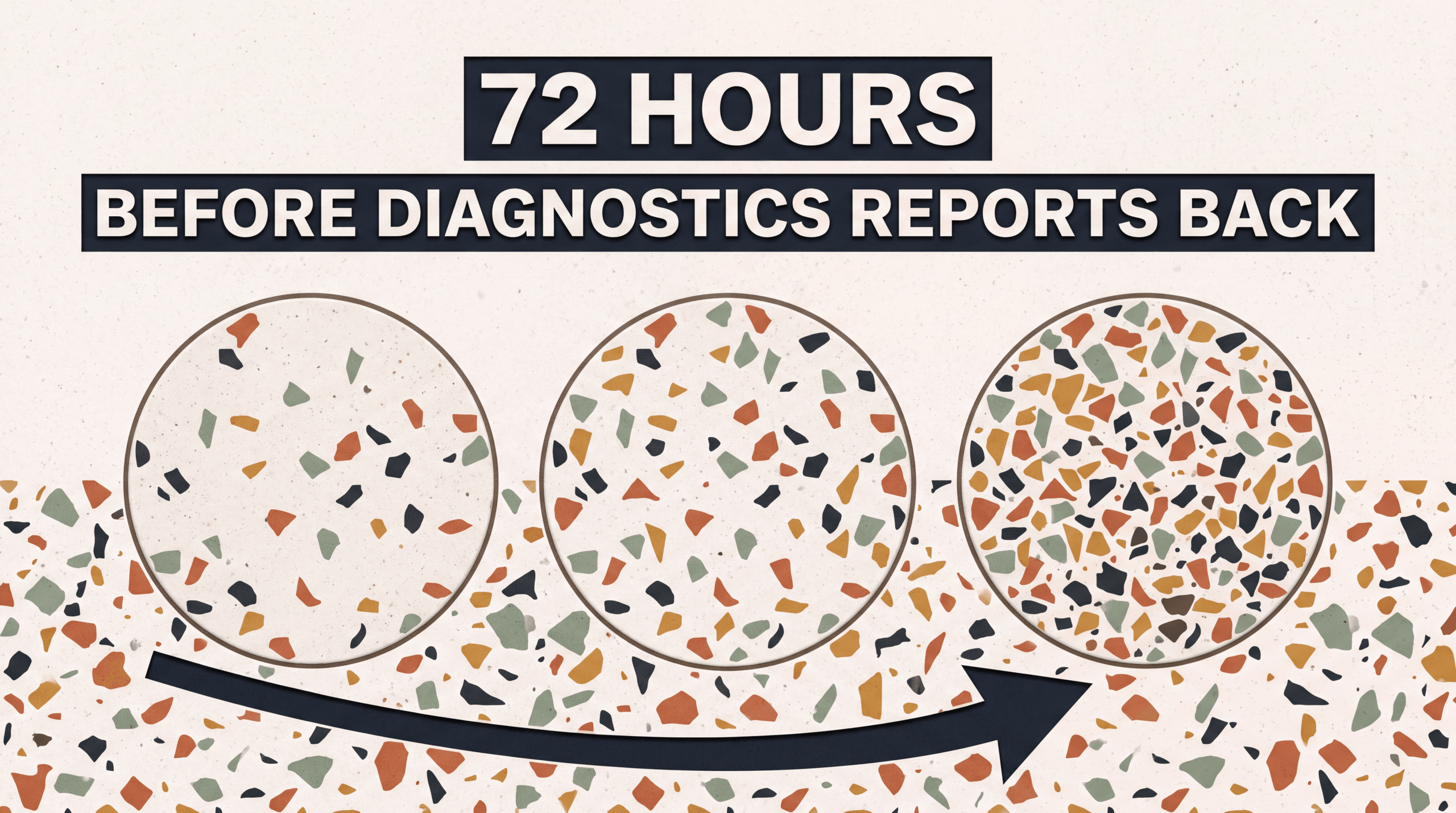
Not waiting for validation. It takes approximately 72 hours for Google to populate the Diagnostics tab with Enhanced Conversions data. Advertisers who check after 24 hours, see nothing, and assume the implementation failed end up removing a working setup. Wait the full 72 hours.
How does Hyros complement Enhanced Conversions?
Enhanced Conversions is a meaningful upgrade over standard tag-only tracking. But it operates within Google’s ecosystem, which means it inherits Google’s structural limitations.
Google only matches against its own user base. If the customer who clicked your ad is not signed into a Google account at the time of conversion, Enhanced Conversions has no match to make. The conversion is still lost. Hyros matches against its own first-party identity graph, which is built from email, phone, and other deterministic identifiers collected across your checkout flow and CRM — not dependent on whether the customer uses Gmail.
Google cannot see other platforms. Enhanced Conversions improves Google-to-Google attribution. It does not tell you that the customer also clicked a Meta ad, watched a TikTok video, and opened three emails before converting. Hyros tracks the full cross-platform journey and attributes revenue to every touchpoint. This distinction matters for budget allocation — if Google claims credit for a sale that Meta actually initiated, you will over-invest in Google and under-invest in Meta. For a deeper comparison, see our guide on ad tracking vs analytics.
The 63-day upload limit. Enhanced Conversions for Leads drops any conversion that is uploaded more than 63 days after the click. For enterprise B2B companies with 90+ day sales cycles, this is a structural gap. Hyros has no upload window limit — a click from six months ago that eventually leads to a closed deal is still attributed.
Hyros feeds corrected data back to Google. Hyros does not just track for its own dashboard. It sends verified conversion signals back to Google Ads through the offline conversion import pipeline, which means Google’s Smart Bidding algorithm learns from a more complete dataset. According to a published Hyros case study, the Tony Robbins ad team used Hyros data to scale ad spend by 43% for Business Mastery and over 100% for Unleash The Power Within over six months — scale that requires high confidence in the underlying conversion data. For more on how server-side tracking works across platforms, see our server-side tracking guide.
Hyros starts at $230 per month on an annual plan ($379 per month if billed monthly) and includes server-side tracking, cross-platform attribution, and native integrations with Google Ads, Meta, TikTok, and over a dozen other platforms.
FAQ
What data does Google Enhanced Conversions collect?
Enhanced Conversions collects hashed versions of customer-provided data from your conversion page. The supported fields are email address (required), phone number (recommended), first and last name (recommended), and mailing address broken into components — street, city, region, postal code, country (optional). All data is hashed using SHA-256 before transmission. Google does not receive plaintext personal information. The hashed values are matched against Google’s database of signed-in users to connect conversions to ad clicks. If you pass unhashed data through the Google tag, the tag automatically handles hashing before sending.
Is Enhanced Conversions the same as Consent Mode?
No. They solve different problems. Enhanced Conversions recovers conversions from users who consented to tracking but whose cookies expired, were blocked, or were deleted. Consent Mode v2 handles users who did not consent — it adjusts tag behavior and uses statistical modeling to estimate conversions from those users. Both features are complementary and should run together. In the European Economic Area, Consent Mode v2 has been mandatory since July 2025. Enhanced Conversions remains optional but strongly recommended. Running one without the other leaves a category of conversions unmeasured.
Do I need Enhanced Conversions if I already have server-side Google Tag Manager?
Server-side GTM and Enhanced Conversions address overlapping but distinct gaps. Server-side GTM moves your conversion tag from the browser to your server, which bypasses ad blockers and some cookie restrictions. Enhanced Conversions adds deterministic user matching on top of whatever tag infrastructure you use — it can work with both browser-side and server-side GTM. Running both gives you the broadest coverage: server-side GTM handles the ad-blocker and ITP problems, while Enhanced Conversions handles the cross-device and cookie-deletion problems. Google recommends using both together for the most complete measurement.
How long does Enhanced Conversions take to validate?
Approximately 72 hours after implementation, Google populates the Diagnostics tab for the enhanced conversion action. During this period, Google is receiving and processing hashed data, verifying match quality, and building the diagnostics report. You can validate your tag implementation immediately using Google Tag Assistant or browser DevTools (checking for the em parameter in network requests to googleadservices.com), but the full Diagnostics report with match rates and coverage percentages requires the 72-hour processing window. Do not remove or modify the implementation during this period — a common mistake.
Can Enhanced Conversions work with Shopify?
Yes. Shopify stores can implement Enhanced Conversions through Google Tag Manager (the most flexible path), through Google’s native Shopify integration (which supports basic Enhanced Conversions for Web), or through a third-party app. The GTM path requires adding a custom data layer push on the order confirmation page that includes customer email and (ideally) phone number. Shopify’s checkout extensibility changes — checkout.liquid was deprecated August 2024 with auto-upgrade in January 2025 — mean that stores relying on custom checkout scripts need to verify their implementation still works. Platforms like Hyros handle this automatically through their Shopify integration.
Does Enhanced Conversions work for lead generation, not just ecommerce?
Yes, but you need the right variant. Enhanced Conversions for Web works when the conversion (form submission, signup) happens on your website. Enhanced Conversions for Leads works when the initial touchpoint is a web form but the actual conversion (a closed deal) happens offline in your CRM. For lead-gen businesses, Enhanced Conversions for Leads is typically the better fit because it attributes the downstream sale back to the ad click, not just the form fill. The setup requires capturing hashed email and GCLID at form submission, storing both in your CRM, and uploading the conversion event to Google Ads within 63 days.
What match rate should I aim for with Enhanced Conversions?
Industry benchmarks suggest targeting a coverage rate above 70%. Below 50% typically indicates an implementation issue — missing data fields, incorrect field mapping, or a timing problem where data is not available when the tag fires. Match rates improve when you provide multiple data fields (email plus phone plus name) instead of email alone. Google’s Diagnostics tab shows your current match rate and flags specific issues. After initial setup, monitor weekly for the first month and monthly thereafter. Sudden drops usually signal a site update that broke the data layer.
Standalone Summary
Google Enhanced Conversions is a Google Ads feature that sends hashed first-party customer data — email, phone, name, address — alongside standard conversion tags to recover conversions lost to cookie restrictions, cross-device gaps, and browser privacy changes. There are two variants: Enhanced Conversions for Web (for on-site purchases and form fills) and Enhanced Conversions for Leads (for offline CRM-based conversions in B2B). Google reports that the feature improves measured conversions compared to tag-only tracking. Setup requires enabling the feature at the account level, configuring data fields via the Google tag, GTM, or the Google Ads API, and validating in the Diagnostics tab after 72 hours. Enhanced Conversions is complementary to Consent Mode v2, not a replacement — they solve different measurement gaps. The feature feeds Google’s Data-Driven Attribution and Smart Bidding systems with more complete data, which improves bid accuracy over time. Independent attribution platforms like Hyros extend beyond Enhanced Conversions by tracking cross-platform journeys and eliminating upload time limits.
See how Hyros sends verified conversion data to Google Ads — Enhanced Conversions built in. Book a demo